Scope of acceptance
The teacher can see the profile, work and progress; access extends beyond homework.
Reading, attention and eye exercises with Algo the mascot, plus Beta language courses in 9 languages.
ALGO is our mobile learning app for children and adults. It brings reading, attention and eye exercises together with language lessons. Algo the mascot accompanies users through these programmes and guides them through the language courses. We approached the project through more than lesson content. When a child completes a task, the profile in use, who can see the result and what the parent has agreed to are also part of the learning experience.
We therefore placed child, adult, parent and teacher roles at the centre of the product decisions. Creating a child profile without a separate email or password, recording parental consent and keeping teacher access under parental control became parts of the same workflow. You can follow your own work through an adult profile and manage your child's learning through a linked profile. This case study focuses on how those content and access decisions work together.
Reading programmes progress through tasks, with results and learning progress saved. Attention practice includes focusing, remembering and noticing. The number chain is one named example of memory practice in the source material. The eye exercise programme follows on-screen prompts. We bring these areas together within the mobile app's learning scope; you can follow your work through lesson and exercise results.
Reading and exercise content for adults is in Beta. The texts are currently short, and the content is expanding. This describes the programme's present scope and the direction of further content work. ALGO is designed for education and practice. Having children and adults within the same product also makes profile selection meaningful: results and progress are associated with the person doing the work.
Language courses cover English, German, French, Italian, Spanish, Russian, Arabic, Korean and Japanese. Lessons are taught from Turkish. These nine languages are the languages being learnt. The courses are offered in Beta: content was prepared with AI and goes through AI reviews, while teacher review continues. We develop the content alongside this review process.
In a Beta language lesson opened with an adult account, the error reporting option connects feedback to the relevant lesson. The flag icon opens your email app and adds the course and, where available, the question ID to the subject. You describe an incorrect translation, a correct answer being rejected or an audio problem, then send the message. Speech in language lessons comes from the device's text-to-speech engine. The support flow can therefore address content feedback and the device's speech conditions separately.
Accounts are created by people aged 18 or over, using email and password to sign in. The birth year requested during registration is not stored. A child profile is created through Ben → Çocuklarım → Çocuk ekle (Me → My children → Add child) in the adult account. A nickname, age range and content language are selected; school year is optional. The checkbox declaring that you are the parent or legal representative is part of profile creation. The consent text version, time and consenting adult's account ID are recorded.
A child does not need a separate email account. Switching a device to child mode ends the adult session, and the device works only with the selected child profile. Returning to adult mode requires signing in again with email and password. For a child's separate device, the adult can generate a single-use connection code from the child's page. Linked devices can be removed from the same page. These decisions keep profile management with the adult and work on the child's device within that child's profile.
The adult uses email and password; the child does not create their own account.
The nickname and content selection are recorded alongside parental consent.
The adult session on the device ends; returning to adult mode requires another sign-in.
Teachers can create classes, while a child's connection to a class is established when the parent accepts an invitation. The parent enters the invitation code in Öğretmen erişimi (Teacher access) on the child's page and accepts it. The teacher can then see the child's profile, work and progress. This access extends beyond homework results. Explaining which records become visible is part of the same access flow.
As a parent, you can close teacher access at any time using Erişimi kaldır in the same area. The terms explain that teachers use the data for education and for students they are authorised to access. Our product decision was to make class creation and access to a child's data separate actions. A class invitation proposes a connection; parental acceptance makes the child's work visible. Removing access keeps the management of that relationship with the parent.
The teacher can see the profile, work and progress; access extends beyond homework.
The parent can remove teacher access from the same area on the child's page.
The first lesson can be tried without an account. At this stage, the selected course, goal, age range and first lesson results are stored only on the device. When you create an account, first lesson results are transferred to the profile selected during the introduction, for yourself or your child. Without a profile selection, results stay on the device. We connect the first experience to recorded learning through this profile choice. You can encounter the lesson first and then decide whose results they are.
Creating an account triggers a verification email. Verification is not required to start learning, but it is required for account recovery and teacher classes. A password reset link can be requested from the sign-in screen. This distinction allows trying a lesson, signing into an adult account and connecting to a class to have different requirements. Recording learning progress continues that flow: as answers are evaluated, results are retained alongside the relevant profile's work.
Introduction answers and first lesson results without an account are stored on the device.
On account creation, first lesson results are transferred to the selected profile.
Email verification is required for account recovery and teacher classes.
The privacy text explains account and profile IDs, parental consent, family and device connections, lesson results and transaction records alongside their purposes. Lesson answers, duration and progress are processed to evaluate answers, record work and resume learning. Passwords are held in Firebase Authentication and are not written to the ALGO database. A child device accesses only its own profile; the parent sees their own and their children's results.
Account deletion starts after adult sign-in through Ben → Hesap → Hesabımı ve verilerimi sil (Me → Account → Delete my account and data), confirmed with a password. A request to delete just one child profile can be sent from the child's page; the adult account and other profiles remain. Deletion covers the profile, lesson results, progress and linked access records. Deletion requests and transaction records are retained as evidence; they contain IDs and are not anonymous. Classes and invitations created by a teacher are not deleted by this action. The account deletion page explains the email route for people unable to access the app.
The privacy page explains processed data, purposes and access scope.
A whole account and one child profile are separate requests; the deletion page describes removed and retained records.
ALGO is listed as in development in the project record. Its technical foundation includes Flutter, Dart, Firebase Authentication, Cloud Firestore and Cloud Functions. In this version, the initial release is free, with no advertising or subscriptions. Further content work follows the expansion of adult reading texts and ongoing review of Beta language courses. You can tell us about an issue through lesson feedback and the support route.
The app introduction page describes learning scope; the support page explains account and profile steps. Privacy, terms and account deletion texts form part of this usage journey. These application pages are available only in Turkish. When discussing your own mobile product, we can assess lesson content, profile responsibilities and access decisions together. Explore the ALGO page or share your requirements through our mobile app development service.
Speed reading, attention and eye exercise programmes sit alongside Beta courses in nine languages. Language lessons are taught from Turkish; adult reading and exercise content is also in Beta.
The first lesson can be tried without an account. Introduction answers and results stay on the device; when an account is created, first lesson results transfer to the selected profile for yourself or your child.
A child profile is created from an adult account with parental consent; no separate email or password is needed. Switching to child mode ends the adult session on the device.
If the parent accepts a class invitation, the teacher sees the profile, work and progress; access extends beyond homework. The parent can remove access from the same area.
In a lesson opened with an adult account, the reporting option opens the email app and adds the course and any question ID to the subject. You describe and send the issue. The support page explains other reporting steps too.
Yes. From the adult account, confirm the deletion request on the child's page with your password. Your account and other profiles remain; the account deletion page explains which records are removed and retained.

A race against the clock to deliver through the city streets.
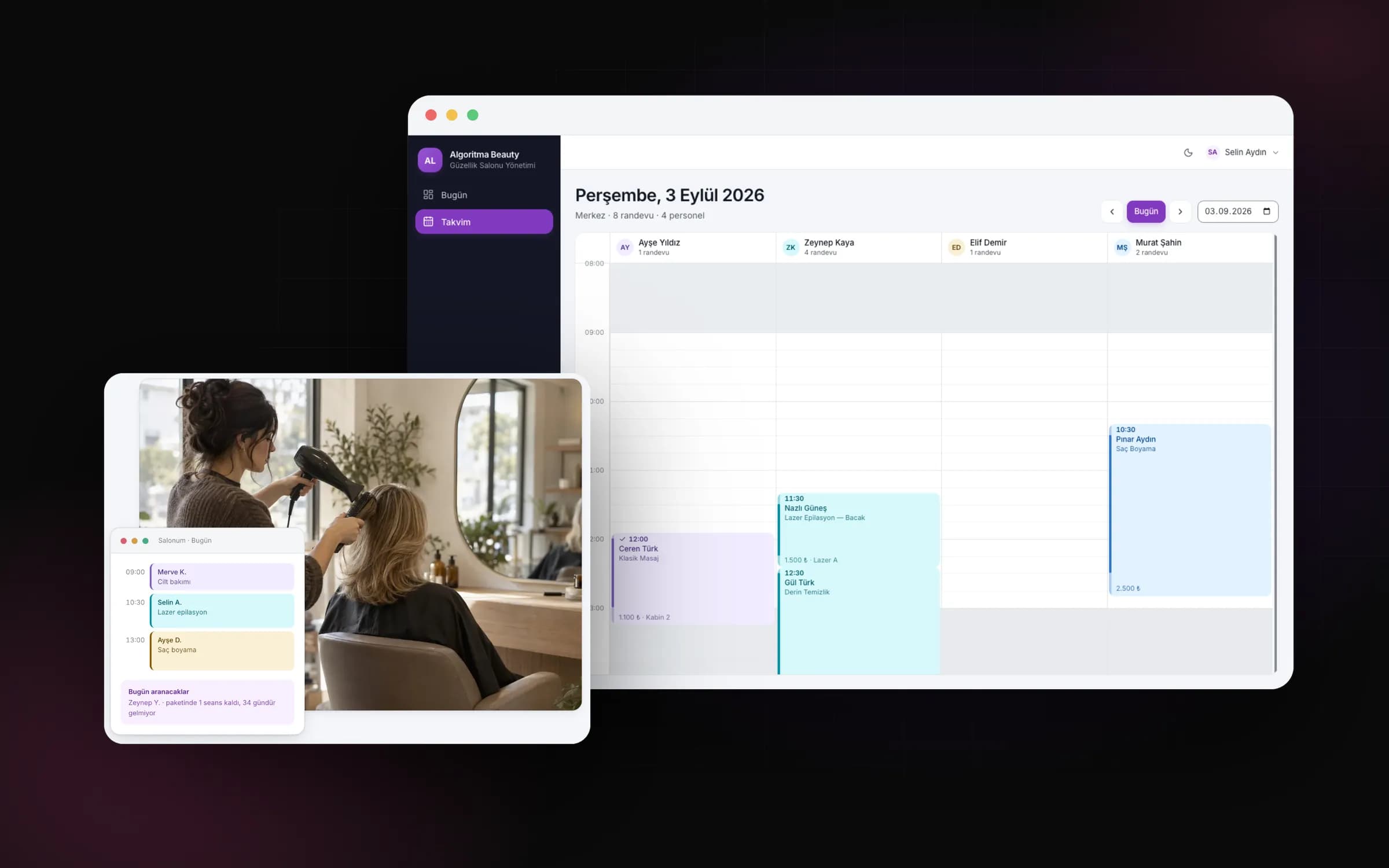
From appointments to payments, from package sessions to stock: the whole salon on one screen.
We can consider content, user profiles and access decisions together and shape your requirements into a mobile app development scope.
Start Your Project