Manage appointment scheduling, client records, package sessions, payments, cash drawer reconciliation and stock in one panel. Start each morning with the clients to call, packages reaching their end and available slots in view.
Screenshots use sample data. The interface is in Turkish; the software is built for salons in Turkey. Amounts are in Turkish lira (₺).
Today dashboardAppointments and availabilityClient recordFollow-up and waiting listPackages and sessionsPayments and balancesCash sessions and expensesStock and consumablesCommission and reportsStaff and rolesResources and maintenanceForms and photosLoyalty and gift cardsOnline requests and portalBranches and activity recordsToday dashboardAppointments and availabilityClient recordFollow-up and waiting listPackages and sessionsPayments and balancesCash sessions and expensesStock and consumablesCommission and reportsStaff and rolesResources and maintenanceForms and photosLoyalty and gift cardsOnline requests and portalBranches and activity records
Beauty salon software: bring scattered records into one daily workflow
Keep each client's appointment, package and payment together. When the phone rings in the morning, open the client record instead of looking for a time in a notebook, remaining sessions in Excel and your last conversation in WhatsApp. Beauty salon software connects these everyday details. When a client asks about their remaining laser sessions, you can also see their visit history and outstanding balance.
Use recorded information to hand over the day between shifts. The appointment reception creates, the service a specialist completes and the payment an authorised colleague records belong to the same workflow. Each member of staff works within their role and individual permissions. Organise responsibilities around the way your salon operates.
Before: information in separate places
×Appointment times stay in a notebook; package entitlements sit in a separate list.
×Payment notes need another search when a client asks about their balance.
×The day's status is passed on verbally between shifts.
After: connected records
✓The client record brings visits, packages and balances together.
✓The calendar connects completed services with their payments.
✓The Today dashboard shows appointments and work needing attention.
Salon management software: understand the scope in clear figures
See how staff responsibilities and daily follow-up are organised. Seven staff roles provide default permissions for different tasks, from reception to accounting. Twelve appointment statuses record the stages from arrival to completion. Eight daily reminder types list clients to call and explain why they need attention. Use this structure to decide who will work in the calendar each morning and which client packages need a closer look.
Adapt responsibilities to your salon. When you give reception access to appointment tasks, check payment permissions separately. You can add or remove permissions for individual users alongside their role defaults. The modules available to your business depend on its enabled features.
7
Staff roles
Owner, manager, reception, specialist, accounting, stock and marketing.
12
Appointment statuses
Statuses describing the different stages of an appointment.
8
Daily reminder types
Reasons for action considered by the client follow-up list.
Today
Today dashboard: see the salon's day at a glance
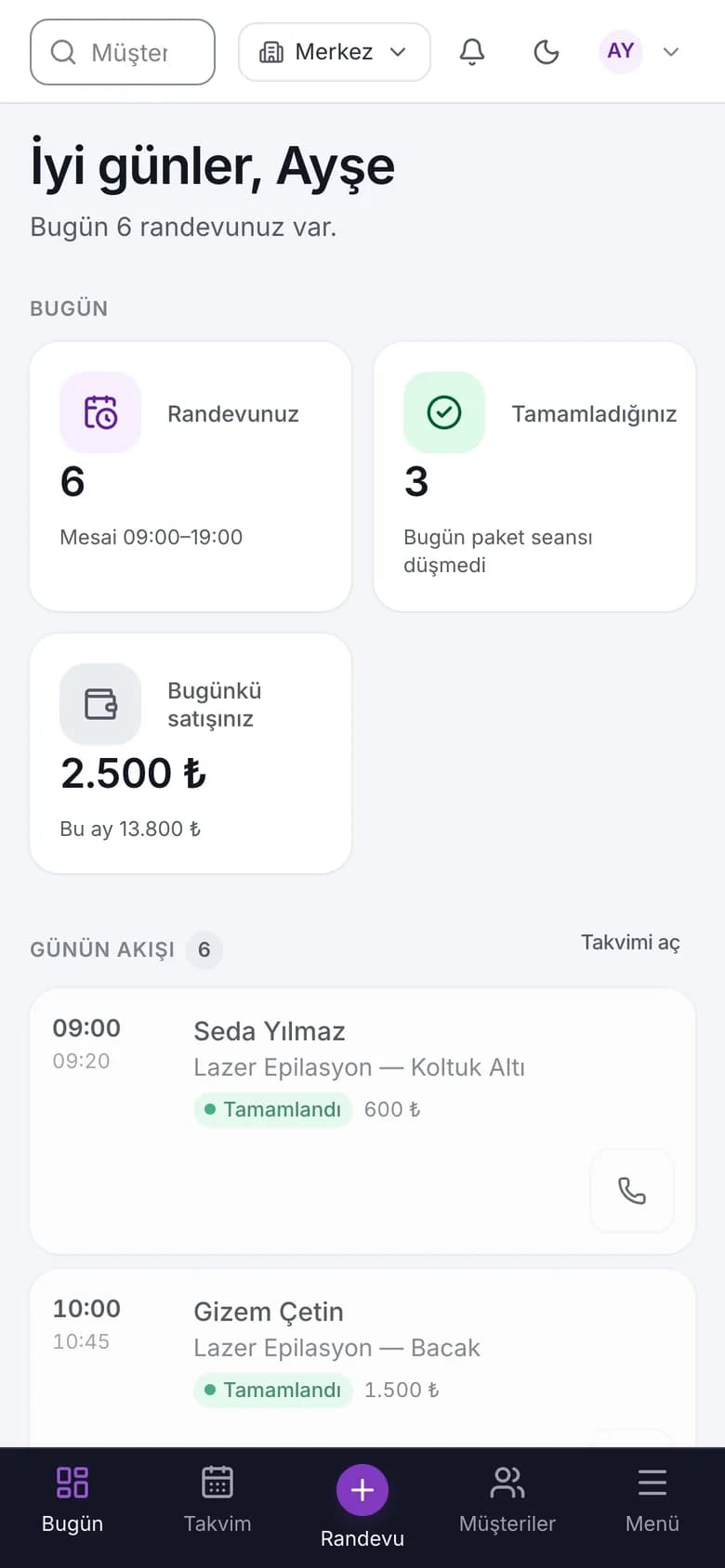
Review the day and choose your first task. As you open the salon, use the Today dashboard to see who is coming, which appointment is next and which package needs attention. The selected branch's appointments, daily summary and clients needing follow-up share one starting screen. Before the first appointment, for example, open a client record from an expiring-package reminder and check the remaining entitlement.
Team members follow the day according to their responsibilities. Reception can use the salon overview, while a specialist can work from their own daily view. The specialist's staff record and permissions determine that view. An explanatory empty state appears if the staff link is missing. Change the selected branch to review another branch's summary, appointments and records needing attention.
See the selected branch's daily appointments on one starting screen.
Notice follow-up reasons such as package expiry and remaining sessions.
Distinguish the specialist's own day from the salon overview.
Clients to call
Client management: know who needs a call today
Call a client whose laser package has run out while the follow-up is still relevant. The client follow-up list brings finished packages, overdue visits and pending payments to your attention, with a reason for each entry. Use the morning filters to choose a group and read the reason on each row before you call. Visit patterns are calculated from recorded past visits.
Keep a record of what happens next. A prepared message opens in WhatsApp or the phone's SMS app; you review it and send it yourself. Afterwards, mark the follow-up outcome in the panel. If a client would prefer to speak the following week, for instance, record that outcome so the work you did today remains visible.
Filter by appointment timing, package expiry and pending payments.
Review the prepared message in your own app before sending it.
Record the conversation's follow-up outcome in the panel.
Calendar
Salon booking software: check resources and find an available appointment
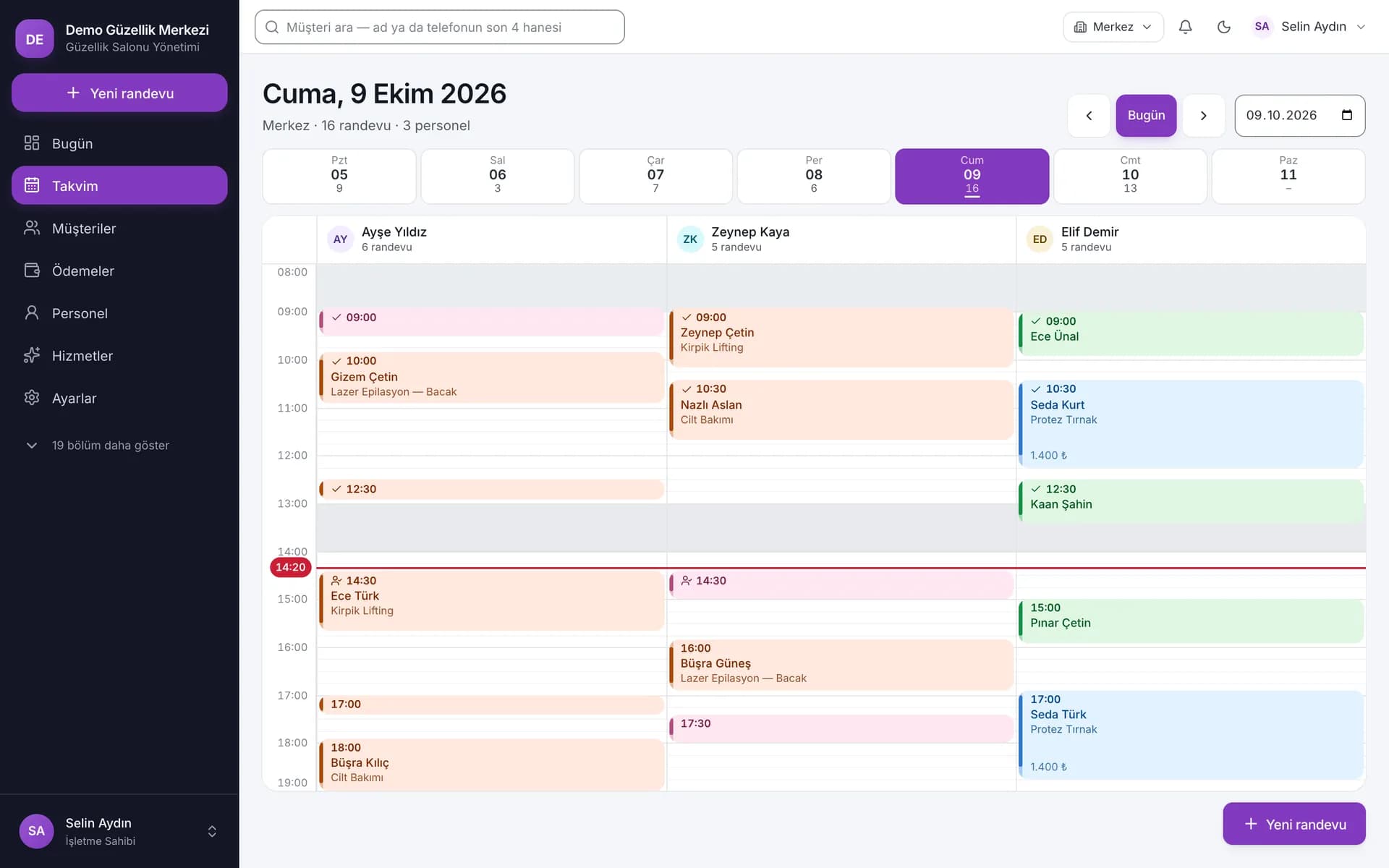
Plan appointments by checking the specialist, treatment room and device together. When a client asks for a facial, you can consider more than the specialist's free time. The salon booking software assesses working hours, breaks, leave and existing appointments alongside the resources the service needs. The desktop calendar uses specialist columns. Preparation and cleaning allowances occupy calendar time too, so you choose the next client's slot with those periods included.
Review suitable alternatives when an appointment conflicts. Select the client, service and specialist for a new booking; one appointment supports up to four consecutive services. When moving an appointment, the software suggests at most five suitable alternatives. Click a suggestion to move the booking if a slot is available; the list can be empty when none fits. Service skills also enter the availability check. A salon offering hair services can use the same structure to account for preparation time and which specialist provides each service.
Read specialist columns while required resources are checked together.
Include working hours, breaks, leave and preparation time in appointment scheduling.
Add up to 4 consecutive services to one appointment.
Review at most 5 suitable alternatives when moving a conflicting appointment.
Appointment statuses: follow arrival, treatment and completion
Follow each client's progress through the salon from the calendar. Reception records arrival; the specialist advances the status as treatment starts and finishes. Statuses such as arrived, waiting area, treatment started and completed keep the day's progress visible. When the phone rings, check the appointment record to see whether the client is still waiting or the service has finished.
Consider the next booking with the client's history in view. Cancellations and missed appointments can raise warnings; a no-show does not automatically block the client. For outstanding debt, choose a policy that allows, warns or blocks. A recorded deposit is included in the payment calculation and is not collected again. Converting a deposit into revenue is a separate action. Check status changes, cancellation and payment permissions individually against staff responsibilities.
Track arrival and service progress with distinct statuses.
Manage cancellations with a separate permission.
Include recorded deposits in the payment calculation.
Daily salon workflow: from opening the cash session to closing the day
Bring the day's workflow into view as you open the cash session. Record the opening float, review appointments and follow each client's arrival and service progress. Package usage and payment follow the completed service in the same workflow. The sequence below shows which record to check at each stage, from opening to closing.
At the end of the day, compare physical cash with recorded movements. Completing a service records package usage; a colleague with payment permission records the amount received. To close the cash session, count the drawer first, then see the session's expected amount. Review the relevant movements if there is a difference and enter an explanation when required. Permissions and activity records help you identify who performed each step. Past closing records retain the values recorded at the time.
09:00
Open the cash session and review the day's schedule
Start the cash workflow with the opening float. After opening the session, review the first appointments on the Today dashboard. The day's cash movements are linked to this open session.
Prepare the team with the correct branch's plan. Check the branch selection and appointment times; staff follow their daily tasks within their own permissions.
Morning
Choose the service and an available time
Offer a time that meets the service requirements. Selecting the service and specialist checks the necessary treatment room and device together. Preparation periods also occupy calendar time.
Read critical information before the service. Check the client's sensitivity note in the new appointment view, then discuss the suggested times with your client.
On arrival
Record arrival and follow the treatment
Make the client's arrival visible to the team. Reception records arrival; the specialist advances the status as the service starts and finishes. A package session is deducted at completion.
Move to payment using the completed service. Recording payment is a separate step; check the service status before passing the relevant record to an authorised colleague.
After the service
Record the payment
Review payment items together after the service. Additional products, discounts, tips and recorded deposits enter the calculation. A partial payment leaves the outstanding balance available for follow-up.
Respect package entitlements at checkout. A service covered by a package is not charged again; a colleague with payment permission completes the payment record.
End of day
Count the cash and save the closing record
Close the day by counting the cash in the drawer. Enter the count in the closing screen, then view the expected amount and difference. Add the required explanation and save the closing record.
Review earlier reconciliation using its saved values. Expected cash, counted cash and the difference are frozen at closing, so later reviews show the amounts recorded then.
Available slots: spot an empty chair while there is still time to act
See an opening before the day ends and review waiting requests. If an afternoon appointment is cancelled, the daily capacity calculation focuses on the rest of the day and excludes elapsed time. Review the gap and open a waiting request whose service and timing requirements fit. When the morning plan changes, assess the new situation through the calendar and waiting list.
Choose whom to call using the request's conditions. Compare a client who can only come in the afternoon with the newly available slot, for example. Contact a suitable client, agree a time and record the conversation's outcome. The monetary value of capacity is shown as an estimate; completed services are tracked separately.
Clients
Client management: keep visits, packages, balances and critical notes together
Welcome each client with their history in view. The client record shows the last visit, next appointment, remaining package sessions and outstanding balance together. Before a laser session, read sensitivity or allergy information in the critical notes area; general conversation notes remain separate. Visit patterns are calculated from the recorded history.
Find a record by name, phone number or client number. Active, inactive and blocked statuses appear separately in the list. Archiving a client preserves links with their past records. Access to photographs and forms depends on user permissions. A specialist's choice to see only their own clients in the list is a display preference; permission to act within their own calendar is determined separately. A specialist can use a record found by reception alongside appointment actions within their authorised scope.
Keep critical sensitivity notes separate from general notes.
Read visits, appointments, balances and packages through the client record.
Review access to photographs and forms through separate permissions.
Packages
Package and session tracking: keep remaining entitlements in view
See the remaining sessions as you speak with a client. Package and session tracking preserves the package name, price and session values recorded at sale. Link the appointment to the package; the session is deducted when the service is completed. Reversing completion restores the entitlement with a reversal entry. A package-covered service is not charged again at checkout.
Prepare renewal conversations as the final sessions approach. Remaining sessions and the package expiry appear in the client record; the renewal opportunities list brings relevant clients together. Freeze, extend, activate and adjust sessions within your permissions. Freezing moves the expiry date forward by the specified number of days. An estimated end date based on usage speed is calculated for packages that have been used. You might freeze a package for a client taking a break, then check the updated expiry at their next appointment.
Record session usage when the appointment is completed.
Restore the entitlement with a reversal entry if completion is undone.
Review remaining sessions, expiry and renewal opportunities together.
Payments
Sales and payments: record partial payments, deposits and outstanding balances
Record the amount received and the balance left after a service. Services from a completed appointment become sale items in the payment screen. Additional products, tips and discounts are considered in the same transaction; discounts require a separate permission. Services covered by a package are not charged again, and the same appointment cannot be charged twice. Product prices come from server records. Select the payment method and amount received to finish recording the payment.
Follow up the remaining balance after a partial payment. If a client pays part of a service today, open the earlier payment and outstanding amount at your next conversation. Cancel an incorrect payment record with a reason; this creates a reversing ledger entry. Cash payments link to an open cash session. Set payment collection, viewing and cancellation permissions separately according to team responsibilities.
Check services, additional products, tips and discounts together.
Record partial payments and follow the remaining balance.
Trace payment cancellations through their reason and reversal entry.
Cash drawer
Cash drawer reconciliation: count first, then compare the expected amount
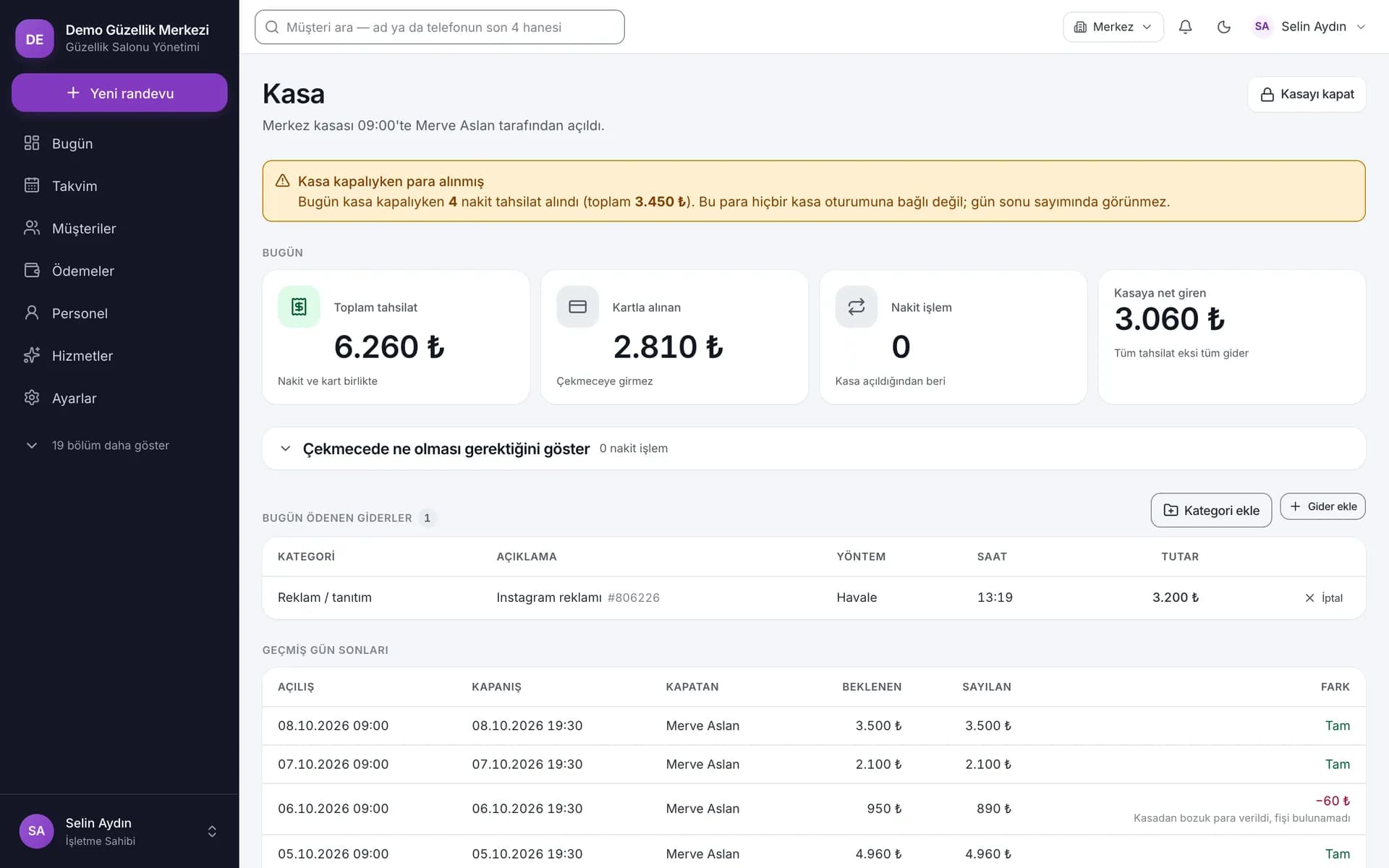
Compare cash in the drawer with the session's recorded movements. Track the opening float, cash received during the day and expenses within one open session. Card payments and bank transfers appear as separate payment methods; only cash movements enter the drawer calculation. Each branch has one open cash session at a time.
Start closing with your own count. Enter the counted amount first, then see expected cash and the difference. An explanation is required when the absolute difference is 50 ₺ or more. Expected cash, counted cash and the difference are frozen at closing; an expense linked to a closed session cannot be cancelled. The daily cash page also lets you deliberately reveal expected cash. The count-first, compare-second order applies to the closing screen.
Keep card payments and bank transfers separate from drawer cash.
Enter the closing count before comparing the expected amount.
Record a reason for an absolute difference of 50 ₺ or more.
Staff management: organise hours, leave, commission and permissions
Keep working hours, leave and responsibilities within the same staff structure. When you define a specialist's break or day off in the weekly schedule, it enters the availability calculation. Service skills determine which specialist can provide each treatment. Staff without a login account can also appear in the calendar. As reception creates bookings, decide whether a specialist needs panel access based on their responsibilities.
Manage commission and access alongside each employee's work. Commission for completed sales follows the rules recorded at sale. Add or remove individual permissions alongside role defaults. Your business's enabled features determine which modules are available. Archiving a member of staff preserves past appointment and commission records.
Working hours: plan appointments around the actual schedule
Choose appointment times around the real working pattern. Weekly hours, lunch breaks and leave enter the availability calculation. Record a specialist's break in the schedule, for example.
Track closed days and staff leave separately. A salon closure and a specialist's day off affect availability for different reasons; check both in the schedule.
Service skills: match each treatment with the right specialist
Use the staff record to identify who provides a service. Job title, branch and services are recorded. Check the relevant specialist's skills before booking a facial.
Build the calendar team around your responsibilities. Staff records and login accounts are separate; an employee without a login can still appear in the calendar.
Commission: retain the rules used at the time of sale
Review month-end commission using the rules recorded at sale. Percentage and fixed rules are available. A later change to a rate does not alter past sales' commission.
Read the commission base alongside its items. Discounts are allocated proportionally; tips are excluded. Commission comes from sale items linked to staff, so review each colleague's sales through those records.
Permissions: match access to each person's work
Match permitted actions to the employee's responsibilities. Roles define default permissions; individual additions and removals let you adjust the scope. Check reception's appointment and payment tasks separately.
Manage a specialist's daily access around their own calendar. By default, they act on their own appointments. Set payment viewing and collection permissions separately.
Stock
Stock and consumables: distinguish products sold from materials used
Track retail products separately from materials used during services. The stock screen shows retail and consumable types, critical levels and out-of-stock items. Record purchases and stock movements. Add the aftercare product a client buys to appointment checkout or sell it without an appointment. A sale records its stock deduction; insufficient retail stock causes the transaction to be rejected.
Track materials consumed using a service recipe. Define the materials used per facial, for example. Checkout processes consumables for every appointment item, including package sessions. Insufficient consumables produce a warning while payment proceeds. Review the warning and check the stock record. Material cost enters the service contribution report; assess shelf sales and treatment consumables through their respective records.
Define retail products separately from service consumables.
Track purchases and stock movements through their movement history.
Distinguish rejected retail sales from consumable shortage warnings.
Salon reports: compare revenue, occupancy, service contribution and branches
See how activity and revenue change over your selected period. Review appointments, new clients, occupancy and lost appointments together. A period report compares against the immediately preceding period of equal length. No percentage change is calculated when the earlier value is zero. When reviewing this month's occupancy against the preceding period, consider appointment and new-client counts too.
Compare services by their contribution after materials and commission. Service contribution deducts materials and commission from revenue; rent, salaries and tax are excluded. Preparation and buffer periods enter hourly contribution. Review revenue per staff member in the branch table. In the client return report, read visit patterns alongside follow-up outcomes. Financial indicators require separate permissions; use these to set the team's report access.
Period indicators: review activity together
See the period's activity alongside appointments and occupancy. New-client figures are also shown for the selected period. Compare appointment counts for this period and the previous one.
Compare changes over periods of equal length. The immediately preceding period is used; read the rates alongside the selected date range and previous values.
Service contribution: see the balance after materials and commission
See a service's contribution after materials and commission are deducted from revenue. Compare facial and laser services using their recorded costs.
Assess hourly contribution with preparation time included. Preparation and buffer periods count towards time; rent, salaries and tax remain outside the calculation. The report lets you compare contributions across services.
Branch performance: compare revenue per staff member
Compare branch activity through revenue per staff member. The table also provides appointment indicators. Review cancellation and no-show warnings in the same view.
Consider differences alongside each branch's working conditions. Compare revenue and appointments for two branches with different staff numbers, then decide which records need a closer look.
Client follow-up: spot overdue visits and review outcomes
Notice overdue clients through visit patterns. Patterns calculated from past visits create follow-up reasons; you record the conversation's outcome separately. Review the reason when a regular client leaves a longer gap.
Read return visits after follow-up. Assess conversation outcomes alongside visits. The estimated loss indicator helps planning as an estimate; review actual records separately.
Waiting list and leads: make use of a newly available slot
Compare an available appointment slot with waiting requests. The waiting list matches the client's service and timing requirements against a calendar opening. For an afternoon laser slot, see clients who can come in that interval. Open a suitable request, contact the client and agree a time they accept. Record the conversation's result as you update the day's plan.
Track a new lead's conversations separately. The leads screen records the request's source, communication activity and stage. Review the status of an enquiry from a social channel after its first conversation, for example. Converting a lead to a client is a separate action. Source comparison includes revenue generated; the conversion-rate denominator is closed leads.
Compare waiting requests' conditions with calendar openings.
Record each lead's source and conversation stage.
Manage conversion to a client as a separate action.
Additional records: track maintenance, consent, points and gift cards
Review room and device maintenance alongside the appointment plan. Link resources to service requirements and use maintenance history to track upcoming and overdue work. Decide whether to use a laser device after reading its maintenance warning; overdue maintenance does not automatically disable it. Review resource availability and maintenance history separately as you prepare the day's services.
Follow each client's forms, points and gift cards through their own records. Consent is saved with a confirmation tick in the panel and the form text as it stood then. Check forms missing or due for renewal for a service. Uploading photos requires client consent and a separate user permission. Loyalty points support earning, history and manual adjustments. Gift cards show code, expiry, status and balance; cancelling a gift-card payment restores the balance through a reversal. Choose the areas you need within your business's enabled features.
Treat overdue maintenance as a warning and assess device use yourself.
Follow consent through panel confirmation and the saved form text.
Track points earned and their history; adjust them manually when needed.
Check gift-card status and remaining balance.
Online booking: accept requests and give clients their own overview
Let clients submit an online booking request from available times. At the salon's link, they select an online-enabled service, specialist and time. The same availability engine is used as in the panel. The request is created awaiting approval; you review it in the salon panel. An evening request, for example, can be reviewed in the next morning's follow-up workflow before you complete the salon's approval step.
Show clients their own appointment and package summary. The salon grants or removes portal access. Clients log in with phone number and password within their own salon's scope and see appointments, packages, balances, points and the form list. To change an appointment, they call the salon. The form list shows name, date and confirmation information. Internal notes, business costs and commission stay in the panel; clients receive a summary of their own records.
Accept requests for online-enabled services from available times.
Review requests awaiting approval in the salon panel.
Show clients their own appointments, packages, balances and points in the portal.
Mobile salon software: follow the day from your phone browser
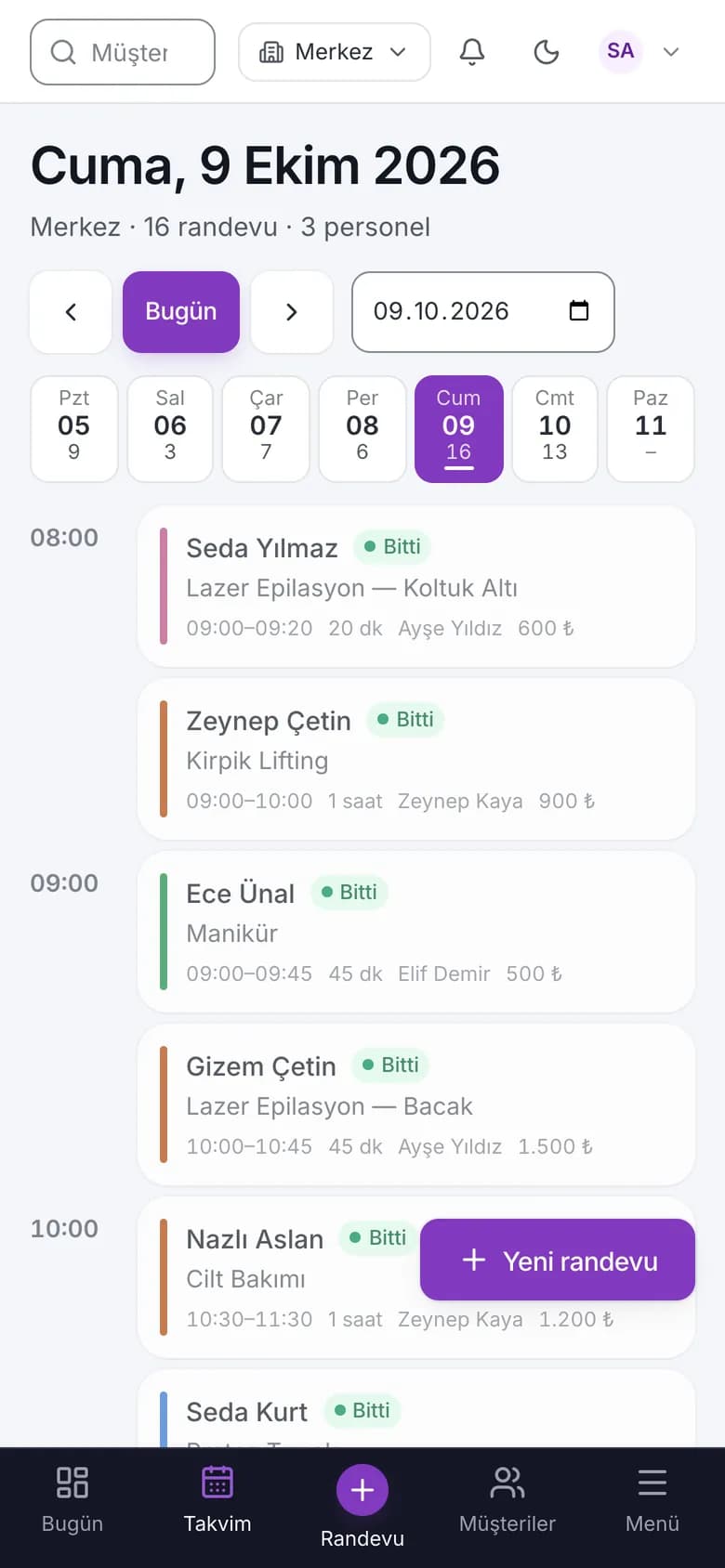
Check appointments when you step away from reception's computer. Use the responsive interface in your phone browser without downloading an app. The desktop's specialist columns become an agenda view on the phone. Move between areas using the bottom menu and menu drawer. On the way to a treatment room, for example, read the next appointment's time in the agenda and open the relevant client record on your phone.
A specialist can follow their own day from the phone in their hand. Their daily view contains their appointments and completed work; advancing statuses is part of the workflow. The client record also adapts to a narrow screen. Staff links and user permissions determine the available actions. After providing a service, advance its status within your own responsibilities.
Read the phone calendar in agenda order.
Link the specialist's own daily view to their staff record.
Access client records in the browser without downloading an app.
Salon management software: find the right module for each task
See which screen supports each part of your salon's work. The module map groups appointment, client, financial, team and supporting records by work area. Review the Today dashboard reception opens in the morning, the payment screen after a service and the evening cash closing together. Available areas depend on your business's enabled features; discuss the scope you need during the demo and quotation conversation.
Match screens to staff responsibilities. Appointments and client records start the daily workflow; packages, payments and cash sessions follow the completed service. Staff, stock and reports support management tasks. Give reception's booking work and accounting's movement reviews separate permissions.
Daily work
4
Today dashboard
The selected branch's day and a specialist's own daily view.
Appointments and availability
Staff, resources, working hours and preparation time assessed together.
Client record
Visits, critical notes, packages, balances and client event history.
Follow-up and waiting list
Reasons to follow up, outcome records and requests matching available slots.
Services and finance
5
Packages and sessions
Package values at sale, usage, reversals and remaining entitlements.
Payments and balances
Completed services, additional products, partial payments and outstanding balances.
Cash sessions and expenses
Open cash sessions, cash movements, counts and closing differences.
Stock and consumables
Product sales, stock movements and materials consumed per service.
Commission and reports
Commission recorded at sale, period indicators and service contribution.
Team and client access
6
Staff and roles
Working hours, breaks, leave, skills and individual permissions.
Resources and maintenance
Room and device requirements, maintenance history and warnings.
Forms and photos
Panel confirmation, retained form text and permitted photo access.
Loyalty and gift cards
Points earned, history, adjustments and gift-card balances.
Online requests and portal
Booking requests awaiting approval and access to each client's own summary.
Branches and activity records
Branch context, comparisons and activity summaries linked to users.
Record keeping: compare notebooks and Excel with connected salon records
Compare the information you move manually between records. A notebook and Excel may hold appointments, packages and payments in separate lists. When a service finishes, you update sessions and balances elsewhere. Salon software connects these records within the same workflow. The comparison below shows everyday tasks such as appointment availability, client history and cash reconciliation using both methods.
Make the records you will organise during a transition concrete. Consider how a completed laser appointment creates a session-usage entry and how a cash payment links to a cash session. You enter critical notes, working hours and consumable definitions yourself; you also mark the conversation's outcome. Prepare these inputs around your salon's actual working pattern.
Record keeping: compare notebooks and Excel with connected salon records
Notebook / Excel
Software workflow
Appointment availability
Working hours, breaks and resources are checked through separate notes.
Staff, treatment room and device availability are checked together.
Package usage
Each completed session is entered manually in a separate list.
A session is deducted at completion; undoing completion creates a reversal.
Client history
Visits, payments and critical notes are searched for across different records.
Connected history and summaries appear together in the client record.
End of day
Cash and other payment-method totals are calculated separately.
Cash movements in the session are compared with the physical count.
Follow-up
Reasons to call a client are found in personal notes.
The follow-up list gives reasons; the user records conversation outcomes.
Appointment availability
Notebook / Excel
Working hours, breaks and resources are checked through separate notes.
Software workflow
Staff, treatment room and device availability are checked together.
Package usage
Notebook / Excel
Each completed session is entered manually in a separate list.
Software workflow
A session is deducted at completion; undoing completion creates a reversal.
Client history
Notebook / Excel
Visits, payments and critical notes are searched for across different records.
Software workflow
Connected history and summaries appear together in the client record.
End of day
Notebook / Excel
Cash and other payment-method totals are calculated separately.
Software workflow
Cash movements in the session are compared with the physical count.
Follow-up
Notebook / Excel
Reasons to call a client are found in personal notes.
Software workflow
The follow-up list gives reasons; the user records conversation outcomes.
Data access: separate salon records and trace staff actions
Manage your salon's records within business and user scopes. Database row-level security, or RLS policies, separates salon data; isolation tests exist. Application actions also apply the business scope. Portal data is narrowed further by client identity. Set the screens reception can access using roles, individual permission exceptions and the business's enabled features, for example.
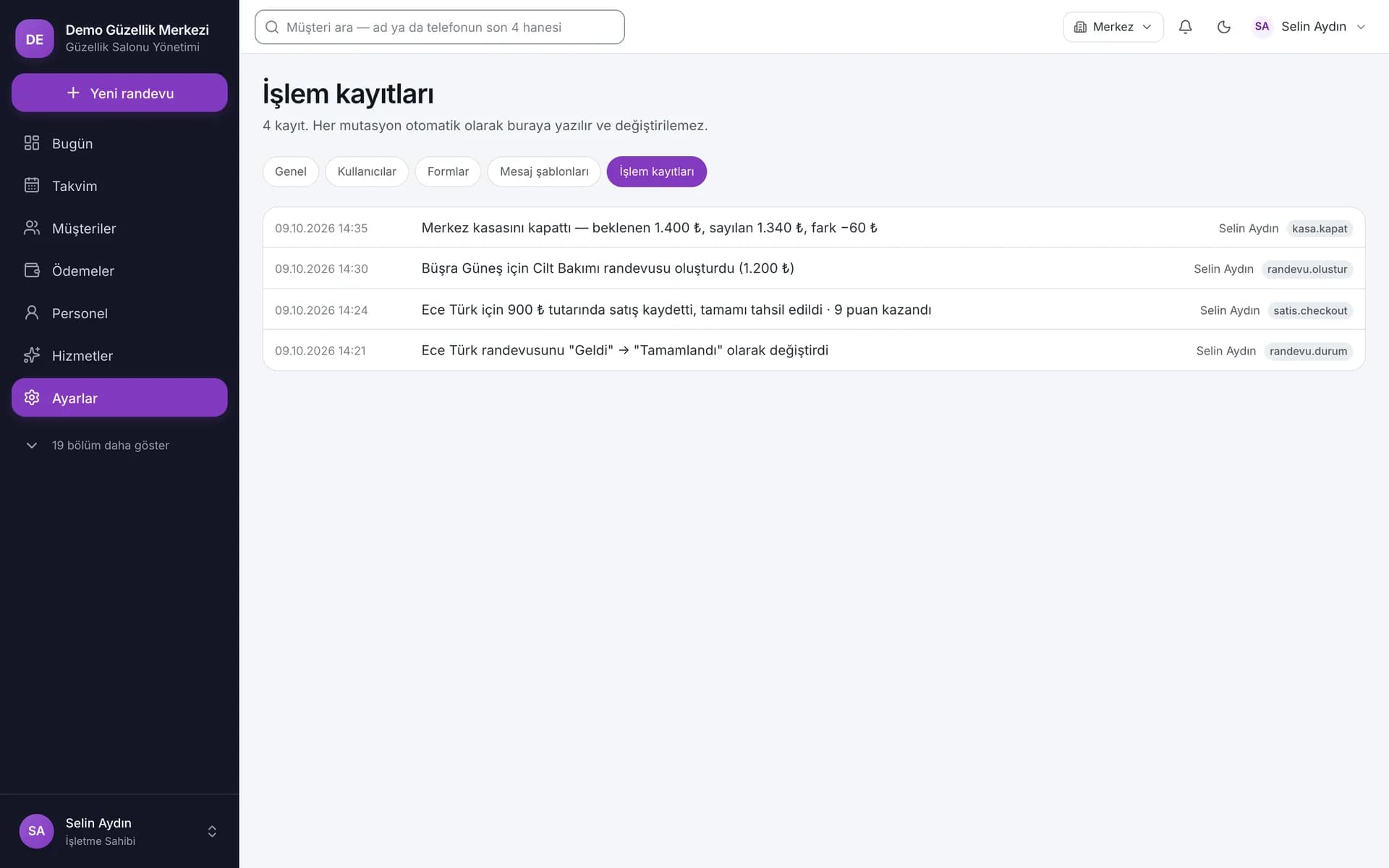
Review who performed an action and when through the history. Communication, marketing and photo consents are stored separately. Photo consent starts disabled; withdrawing it deletes the images. User permission is also needed for access. Consent records retain the text as it stood at the time. Clients, staff, services and products are archived; payments are cancelled with a reason to preserve their trail. When reviewing an incorrect payment, read the cancellation reason and reversing entry alongside the activity history.
Roles and individual permissions
Individual additions and removals adjust default role permissions. Available areas also depend on enabled business features.
Photo consent
Client consent and user permission are both required. Photo consent starts disabled; withdrawing it deletes the images.
Consent record
Consent cannot be saved without the confirmation tick in the panel. The form text and fields as they stood are retained with the response.
Activity history
Payment cancellation records a reason and reversing entry. Clients, staff, services and products are managed through archiving.
Client import: preview your Excel list as CSV before transferring it
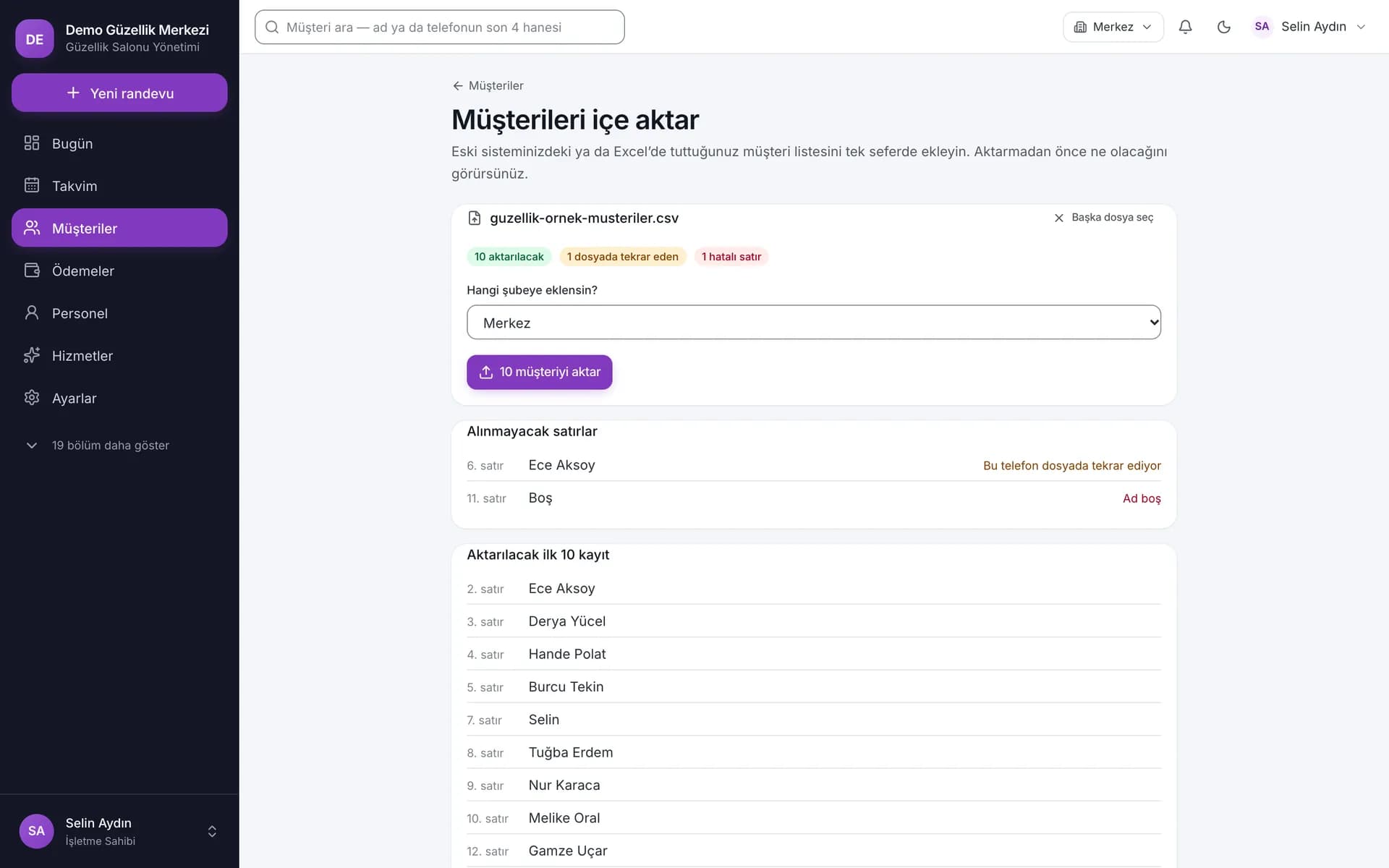
Check your client list in the preview before importing. Save your Excel file as CSV (UTF-8); importing basic client information supports up to 5,000 rows. See duplicates within the file, existing phone numbers, invalid rows and rows to add separately. Select the branch and review the preview. Data is checked again during import. Discuss the scope of any earlier appointment, financial and session history separately; this workflow imports basic client information.
Prepare the first appointment around your salon's real working conditions. Service duration, preparation allowance, specialist skills and working hours enter the availability calculation. Define a facial's duration and required room, for example, then record the specialist's break. Check permissions separately for staff who collect payments and those who only view them. Then review booking, completion, package usage, payment and closing alongside your team's responsibilities.
01
Services and resources: define the appointment requirements
Set service durations, preparation and cleaning allowances, and required rooms and devices. Check which services specialists can provide.
02
Hours and permissions: check each person's scope
Record working hours, breaks and leave. Link the staff record to the login account and review the role's permitted actions.
03
CSV preview: check the basic client data
Save the Excel list as CSV (UTF-8). Check duplicate and invalid basic client rows in the preview, then select the branch.
04
Daily workflow: review the sequence together
Review appointments, completion, package usage, payments and cash closing. Compare the screens with your own division of responsibilities.
Screenshot gallery: take a closer look at beauty salon software
Enlarge the areas you will use in daily work. Look at a service card's duration, a client's debt indicator or a gift card's remaining balance. Screenshots use sample data. Open thumbnails and move between images with the previous and next buttons. Phone numbers are masked. See how activity history appears alongside service and client records.
Compare the screens with your own task sequence. When preparing an appointment, read service duration with its preparation allowance; when finding a client, check the last visit and balance fields. Review which record shows balance movements after a gift-card payment. See user and time information in the activity history. The dark calendar illustrates the interface's theme option. Use these images to choose areas you would like to discuss in more detail during a demo.
Choose your plan
Pay monthly or yearly; prices include VAT. The plans differ by billing period.
Further reading: prepare your questions for the demo
Come to the demo with questions from your daily work. The product case study explains the project context and approach. The article on websites and web applications helps you assess a business panel used in the browser. Connect these readings to your salon's workflow by considering the record you open to greet a client and the payment you record after a service.
Clarify who performs each step in the team. Who opens the record when a client arrives, who completes the service and who collects payment? At what stage do you check package entitlements? Arrange the screens in this sequence to identify the tasks you want to see during the demo. After reading the case study, bring your responsibilities and record-keeping questions to the contact form.
Basic client information is imported as CSV (UTF-8) with a preview. Save your Excel list in this format first. Duplicates and invalid rows are shown separately; up to 5,000 rows are supported.
Does the software work on a phone?
Yes. The responsive interface works in phone and desktop browsers without an app download. On a phone, the calendar uses an agenda view.
Can clients submit online appointment requests?
Yes. Clients choose an online-enabled service, specialist and available time. The request awaits approval. The portal shows their own summary; they call the salon to change an appointment.
How is an incorrect payment record corrected?
Payments are not deleted: they are cancelled with a reason and a reversing ledger entry. Clients, staff, services and products are archived. Relevant records can be reviewed in the activity history.
How is data separated between salons?
Database row-level security (RLS) separates salon data; isolation tests exist. User actions apply the business scope. Portal data is narrowed further by client identity.
Is a package session deducted as soon as an appointment is booked?
Track remaining entitlement against the service actually delivered. A session is deducted when the appointment is completed; undoing completion restores it with a reversal entry. Booking preserves the entitlement.
How does the calendar account for rooms and devices?
Plan the right specialist and resources together. The calendar uses staff columns; the booking engine checks staff, room and device availability alongside working hours, breaks, leave and preparation time.
Will a conflicting appointment always have an alternative?
Move a conflicting appointment using at most 5 suitable alternatives. The list stays empty if no time fits; clicking a suggestion moves the appointment to that time.
Can consecutive services share one appointment?
Plan up to 4 consecutive services for a client in one appointment. The services' staff and resource requirements are assessed together in the availability calculation.
Who sends a message opened from a template?
The prepared text opens in WhatsApp or the phone's SMS app; you review and send it yourself. Afterwards, record the follow-up outcome in the panel.
Can I record a partial payment?
Record the amount received and track the outstanding balance. Completed services, additional products, tips, discounts and recorded deposits enter the payment calculation together.
Is a recorded deposit collected again at checkout?
The recorded deposit enters the payment calculation and is not collected twice. Converting a deposit into revenue is a separate, deliberate action; a no-show does not do it automatically.
When does a cash difference require an explanation?
In the closing screen, enter the count before the expected amount and difference appear. An explanation is required for an absolute difference of 50 ₺ or more. Expected cash, counted cash and the difference are frozen at closing.
Which costs does the service contribution report deduct?
Materials and commission are deducted from service revenue. Preparation and buffer periods enter hourly contribution. Rent, salaries and tax are excluded from this calculation.
Which calendar can a specialist act in?
By default, a specialist acts on appointments in their own calendar. Individual additions and removals can adjust role permissions. The client list's display preference is a separate matter.
How is a consent form retained?
Consent is recorded with a confirmation tick in the panel. The template's current text and fields are saved with the response. Missing or renewal-due forms are assessed against the relevant service.
What happens when photo consent is withdrawn?
Photo consent starts disabled. Uploading requires client consent and a separate user permission. Withdrawing consent deletes existing images and archives the photo records.
Which loyalty point actions are available?
Points can be earned from spending, their history reviewed and manual adjustments recorded. Tips and gift-card sales are excluded from the points-earning base.
Does overdue maintenance automatically disable a device?
Follow overdue maintenance through warnings. Use the maintenance history and the service's resource requirements to decide whether to use the device; overdue maintenance does not disable it automatically.
Are all modules enabled for every business?
Available modules depend on the business's enabled features. Role permissions, individual exceptions and enabled features are considered together. Specify the scope you need during the demo and quotation conversation.
How can I buy it?
Choose your package on this page and order online with “Buy”; the payment options are shown at checkout. Once your payment is confirmed, we plan the setup with you. If you would like to see it first, request a demo and we will send you the right package and its price in writing.
Do we receive the source code?
In our standard model the software is provided on a subscription and the source code is not transferred. If you need a different model, it is agreed in a separate written contract.
Who is responsible for what is done with the software?
We build and operate the software. The business using it is responsible for how it is used, the data entered and the content published; the details are set out in the service agreement.
Tell us about your appointments, packages, payments and team responsibilities. Request a demo or quotation from Feza Innovation for the beauty salon software scope you need.